Showing posts with label Tricks. Show all posts

Tuesday, 23 October 2012

Create your own Images as Emoticons for Facebook Chat

Earlier we posted some awesome Mr. Bean and Jack Sparrow emoticons code for Facebook chat delivered to our inbox by Shiva Singh and today he again told us how those images can be created using a simple online website called “Smileyti.me”. Now it’s a simple image uploading and emoticon conversion website which will simply create some different codes for your images when they are complied together you get your image drawn right in front of your eyes.
So now we have a created a Gif image for helping you out in uploading your image and using that website below so now just follow below steps and have fun creating your own funny images.
Smileyti.me

How to Create your own Image Emoticons using Smileyti.me :

1. Just visit there website http://smileyti.me/
2. Now you will see page asking you to choose your image and than entering that irritating captcha you can follow below .gif image we created uploading our default website logo.
Smileyti.me-Image-Emoticons
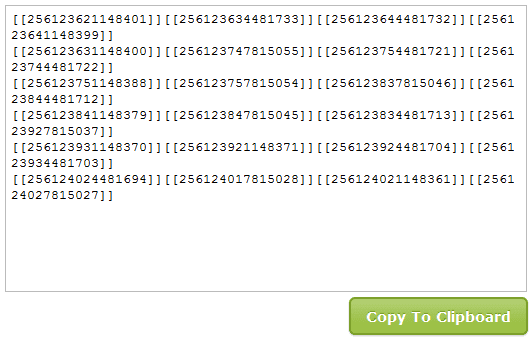
3. Now after you upload your image you will get your code like below.
Smileyti.me-Code
4. Now that’s your final code, just copy this code and paste it in your Facebook chat and you will see your image rendering simply perfect.
Have fun and I hope you enjoyed this amazing article by HackingUniversity with support of Shiva Singh, once again thanks to him for this amazing website.
Read more

Monday, 22 October 2012

5 Organisations fighting for online freedom


Instances of Internet censorship have been decried by advocates of democracy and free speech, and there are many organisations around the world striving for online freedom.
5 Organisations fighting for online freedom
The Internet has been the single most disruptive technology phenomenon of our times. In just a matter of years, human civilisation has been transformed in the way that we spread information, access entertainment and communicate. Over the years, it has evolved in wonderful and unpredictable ways because of its free and open nature. Now, its very foundation is being threatened by governments and private interests around the world who seek to control change rather than adapt to it.

This is because the all-powerful Internet has in recent times allowed the voices of common people to be heard in ways never possible before—in some cases, to express political dissent, while in others, to express dissatisfaction with corporate greed. Unlike traditional media that can be controlled or punished relatively easily, the nature and scope of the Internet poses a challenge to censors and private interests alike. Bills proposing to censor the Internet are mushrooming in almost every country.  It’s being done in the name of curbing piracy, eliminating child pornography, upholding national security, combating terrorism and organised crime etc., all of which sound like noble causes. While measures against such things are necessary, the steps proposed will also gravely undermine and impose restrictions on an individual's use of Internet as we know it.

These measures have been decried by advocates of democracy and free speech, and there are many organisations around the world striving for online freedom. Here we have featured some of them.

Electronic Frontier Foundation
EFF prides itself as the first line of defense when online freedom is threatened
EFF prides itself as the first line of defence when online freedom is threatened


Established in 1990, U.S. based Electronic Frontier Foundation (EFF) prides itself as the first line of defence when online freedom is threatened. It consists of a blend of lawyers, activists, technologists and analysts who defend digital rights on behalf of the people in the court of law. It acts as a watchdog against bad policies that potentially endanger the online freedom. EFF was successful in exposing the Anti-Counterfeiting Trade Agreement (ACTA), a secretive multi-national pact that could have severely curtailed online freedom. Apart from this, EFF also successfully spearheaded the campaign against bills like Stop Online Piracy Act (SOPA) and Protect IP Act (PIPA). These bills, if enacted, would give the authority to blacklist sites accused of copyright infringement without any proof. To protest against these bills, EFF in-conjunction with several other online activists initiated a campaign that was supported by several major sites, as they blacked out their site in protest.  You can sign-up with EFF and stay updated about the latest happenings around the world. You can also take part in its online initiatives and make a donation as well. EFF also provides support and advice to organisations and individuals in countries that practice Internet censorship.

The Centre for Internet & Society
CIS is Indian organization that has been spreading awareness about digital rights
CIS is an Indian organisation that has been spreading awareness about digital rights


The Centre for Internet & Society, based in Bangalore, is one such organisation in India that focuses on concerns of the digital world. It undertakes policy and academic research in the field of Internet and studies its relationship with the society – the political, social and cultural context. It has been very vocal about the attempts of the Indian Government to censor the Internet and undertook several initiatives to create public awareness to demand a policy change. In partnership with Google India, it conducted the Google Policy Fellowship 2011. Rishabh Dara, who was selected as a Fellow, presented a paper about the IT Rules 2011.  As a part of the study, he sent takedown notices to seven prominent intermediaries and studied the action taken by them. The results showed that six out of the seven intermediaries took down the content without proper judgment about whether it was necessary. This could be because they find taking down the content easier than being dragged to court for non-compliance. This successfully exposed the major flaw in the rules and showed just how easily it can be used to censor the Internet.

Anonymous
You may not agree with their methods, but Anonymous has been working for Internet freedom for several years
You may not agree with its methods, but Anonymous has been working for Internet freedom for several years


You may not agree with its ways, but Anonymous has taken a stand against censorship in different parts of the world. A group of hacktivists, it was established somewhere around 2003 and, as the name suggests, the members remain anonymous. During public demonstrations, they wear Guy Fawkes masks, which is now strongly associated with Anonymous and has become its public identity. The members of Anonymous come together and make use of several Internet forums to collaborate. The group is against Internet censorship and targets official government sites by distributed denial of service (DDoS) attacks or by defacing its webpages. Most prominent amongst its activities include Project Chanology – to protest against the Church of Scientology. Anonymous was irked by the Church's attempt to remove a video interview of Tom Cruise extolling the virtues of scientology. Citing it as an instance of Internet censorship, Anonymous released a warning video on YouTube in 2008 and followed it up with DDoS attacks to hinder the operations of Scientology. More recently, Anonymous made news by its activities to protest Stop Online Piracy Act (SOPA) that brought down sites of FBI, U.S. Justice Department, Motion Pictures Association of America and many others. Anonymous also made its presence felt in India in May this year owing to Indian Governments increased attempts at Internet censorship. In the line of fire were the sites of Supreme Court of India, Indian National Congress and Bharatiya Janata Party.  You can get updates about the activities of the group on the site Anonnews.

Internet Defense League
It's a nonprofit group Fight for the Future in collaboration with the founder of Reddit, Alexis Ohanian
It's a non-profit group, Fight for the Future, in collaboration with the founder of Reddit, Alexis Ohanian


The Internet Defense League was established by Fight for the Future, a non-profit group, in collaboration with the founder of Reddit, Alexis Ohanian. The idea of a site came about after the far-spread protest of SOPA bill. The League realised the need for sustained efforts in case of future attempts to censor Internet in the form of various bills. The Internet Defense League has developed a ‘cat signal’, much like the ‘bat signal’, to act as an alert signal during a need for action. How it works is—the websites who have signed-up with them will need to add a code to their site or opt to receive an alert over email. When the alert is sounded, there will be a widget or a banner displayed on the site urging people to take action. It could range from boycott, signing petitions or even black-out. Even bloggers can be a part of this initiative. The idea is to mobilise thousands of people in a short span of time. The sites that have signed up so far include the likes of Mozilla, WordPress, Reddit, CraigConnect, EFF, AccessNow, GrooveShark and many more.

Access Now
Access Now has a contest you can be a part of


Access Now is a U.S. based organisation that is striving for online freedom, globally. The organisation was established in 2009 post the conflict that arose in Iran during the Presidential elections. It brings together organisations, individuals, activists and institutions from around the world to work towards addressing Internet censorship issues. It empowers people, making them aware of their digital rights, and provides them with necessary guidance to fight their cause. It runs several campaigns that you can be a part of; you can browse through the various campaigns undertaken around the world and then digitally sign the petition marking your support. Besides this, it also has a contest – the Access Innovation Prize that will award prize money to individuals, organisations or networks that put forth the best actionable ideas and make use of information technology to promote human rights in their respective countries. They have the option to use an existing tool or present something completely new.  

Are there any other organisations, fighting for Internet freedom, that you are aware of? Do let us know.
Read more

Apps that monitor data usage to keep those bills in check


Those who want to utilise every byte of their data plan frugally can do so using the various data tracking and monitoring apps available for smartphones running on leading mobile platforms like Android, iOS, Blackberry and others.
Apps that monitor data usage to keep those bills in check
Smartphones have become more Internet-centric over the past year owing to the social networking fad and other Internet connected apps. Most of us have a data plan with limited tariff and speed, and surpassing the limit means hefty charges and eventually paying inflated data bills. This may not apply if you have an unlimited plan. However, those who want to utilise every byte of their data plan frugally can do so using the various data tracking and monitoring apps available for smartphones running on leading mobile platforms like Android, iOS, Blackberry and others. These apps send out alerts so that you stay within the data cap, monitor the way you consume data and even point out apps that have been guzzling data.

Android
Google offers its own data monitoring feature for smartphones running on Android 4.0 Ice Cream Sandwich or later. This nifty utility provides a graphical presentation of your data usage, displays data used by each app and helps set a limit. However, ICS hasn’t yet made it to too many Android devices, so third party data monitoring apps could come to the rescue of such users. Moreover, ICS users can also lay their hands on these apps, as they are worth a try. 

3G Watchdog - Free, Rs. 153.10 (for the Pro version)
Yes, it's like literally having a watch dog with its eyes glued to your mobile Internet usage to ensure that you don’t exceed the limit. On installing the app, you will have to first key in your data plan, i.e. the data you are allotted to use, which can be in KB, MB or GB. Then you can also type in the time period, i.e. per day, week or month, making it highly configurable. You can then control the data usage and the app shows the data you’ve been consuming in percentage too (example - 30 percent of data used). If you are nearing the consumption, you can set alerts to keep the usage within limit. You will find a notification icon that can be hidden if required. Using the icon you can tweak the counter table to show only those parameters that you wish to view, such as total allowed data usage, your daily, weekly and monthly usage, and also the amount received and sent. There's also a daily and a global consumption history to see at a glance how your consumption is going. For quick access, there is a homescreen widget in two sizes. Although we think that the free version is sufficient, the 3G WatchDog also has a paid Pro version with some advanced features like data usage prediction, 5 widget styles, usage by application and more.
Watchdog nfor your data
Watchdog for your mobile Internet data


Onavo – Free
Onavo for Android lets you set your data plan limit for the month and alerts via notification status when you are nearing the limit. But what sets it apart from others is its efficiency at monitoring apps that are sucking data and are not actually important or required (collating data may be important for some apps that you use everyday like Gmail, but it may be utterly useless for other apps that you hardly use). Onavo neatly presents all such apps using data and even colour codes them to pin point the app that has been sucking a lot of data. Another handy feature is that Onavo lets you restrict such apps to Wi-Fi only (it will download updates only with Wi-Fi) or even uninstall them with the press of a button. Eventually, you will also end up saving your battery life. Along with this, one can easily set data cap on roaming too. Moreover, it presents statistics showing how you have been using data over a week, month and even a day. If you opt for "Onavo Extend" for Android, it will offer additional benefit by compressing data that is being fed to your phone. Considering that ICS onwards Android has its own built-in data usage function, the free Onavo Extend may seem a better companion for Android phones running on ICS+ operating system.

My Data Manager - Free
My Data Manager is a simple, free app with all the handy features that should matter to anyone trying to fit the mobile Internet usage with their desired bill amount. It monitors and displays the data you use on mobile connection (3G and EDGE), over Wi-Fi and even while roaming. You can set the data cap and receive notifications as you are nearing the limit. You can view the data consumed by day, week or month and also oversee the data you’ve been using in the previous billing cycles. It even tracks the data usage of apps that require Internet connection, such as WhatsApp, Facebook and Twitter, clearly showing how much data each of these apps has consumed in Mb as well as overall percentage wise. All the usage can be seen over a graph, which also shows the connection type (3G, EDGE, Wi-Fi) downloading most of the data.

iOS
iOS also has its built-in data usage feature (Settings > General > Usage > Cellular Usage). But the ability of its home brewed application is limited only to 3G/EDGE, and it won’t calculate any data consumed over Wi-Fi. This is a huge drawback and here begins your hunt for a full-fledged data monitoring system. Needless to say, the App Store offers a slew of options to choose from, and we have picked the three must-have data usage apps.

DataMan – approx Rs. 52
DataMan runs in the background to calculate the amount of data consumed via 3G and Wi-Fi. All you need to do is key in your monthly data plan and set alerts for monthly, weekly and even daily usage. It gives you an overview of how you have been using data, so you can clearly see how much data you have consumed over Wi-Fi or 3G. As you are about to reach the limit, the app will send out an alert. It works for iOS devices running on version 4.0 and above. The Pro version of Dataman brings in additional goodies like Badge Notifications, App Watch, Hourly Report and more. However, Dataman Pro runs on iOS 5.0 and above and is slightly expensive at Rs. 105.

Onavo Extend - Free
Onavo Extend for iOS has all the features mentioned above for Android. One will not need to download an additional app for compressing files separately for iOS as this one app has it all. It is a great option, whether you are using iOS or Android.
Keeps a tab on apps
Keeps a tab on apps


My data Usage Pro - approx Rs. 52
Like most of the other data usage monitoring apps, My Data Usage Pro tracks your usage and alerts you as you near the limit. There are many features that differentiate this app from others. Firstly, it has an intuitive and slick UI. Secondly, the app doesn’t run in the background, which means it doesn’t eat away your battery life. One of the key features is the artificial intelligence algorithm, which learns your usage patterns and adapts to suggest the best daily usage quota limit. It also offers monthly data analysis that helps project your current month's data usage and also suggests patterns so that you don’t exceed the data cap. It uses this special algorithm to show the precise data usage, negating the need to continuously run it in the background. The "Since Last Run" feature helps find apps that have been hogging excessive data unnecessarily.

BlackBerry
The Blackberry App World isn’t as vast as Google Play or Apple App Store, but it throws in several good app options in various genres. We really liked the Network Traffic Control for data monitoring and controlling.

Network Traffic Control - Free
This is a simple, easy-to-use app that keeps a tab on the data usage via radio and Wi-Fi separately. It clearly differentiates between traffic sent out and received, displaying the total usage per day as well as per month. The over-usage alarm can be set to notify that you have exhausted the amount set for the month/day. Once you have passed the desired limit, an over-usage icon will keep showing up on the homescreen. The app is capable of automatically tracking network on device reset and runs in light-weight mode in the background. The app offers compatibility with GSM/ GPRS and UMTS BlackBerry phones, and monitors the data usage over EDGE, GPRS, 3G and Wi-Fi networks.
Your traffic monitor for Blackberry


Symbian
If you still use a phone that runs on the Symbian OS, then the Nokia store has a couple of handy apps that will let you track your data usage and save on those monthly data bills. Do not expect too many bells and whistles though. Nevertheless, these apps are straightforward and provide decent usage.

Internet Tracker – Free, Rs. 20 (for the Pro version)
This app keeps a track of the mobile data used over 2G, 3G and WLAN for each day. It can separately keep a tab on the data used on roaming. Just like most of the data monitoring apps, you can configure a monthly data limit (MB or GB or even unlimited) for Access points (AP) like 2G and 3G. It has easy setup options and offers popup alert notification as you are nearing the data limit. Moreover, the app will display your mobile Internet speed. It also displays apps accessing each Access point along with your phone's IP, gateway, broadcast and DNS address. The lite version is limited to 25MB tracking for each AP, so the reasonably-priced paid version should be a better option.
Internet tracker for Nokia


Data Counter widget - Rs. 5
It can’t get simpler than this. The Data Counter widget will allow you to view the amount of data you are consuming on 2G/3G and WLAN, directly from the homescreen. And yes, you can also set up a warning that will alert you once you near the maximum limit set for the month. This app is very simple and straightforward,.

Windows Phone
The Windows marketplace is still growing and doesn’t bring to you the best of options in monitoring the data usage yet. But if you own one of the latest Nokia Lumia phones, then you are sorted, as Nokia offers its exclusive data monitoring app. For others, here’s an option.

Bundler – Rs. 55
This is a decent option for Windows Phone 7 users. Bundler lets you optimise the usage by allotting specified data for the month. Basically, just like most of the apps, you can set the data limit for the month in MB or GB. It will show you the total data, the data you have consumed so far and also indicate if you can increase the data usage for the day. Here again, it’s a simple app without any fancy features but is decent at monitoring and controlling data usage.
Bundler of joy
Bundler of joy


Irrespective of the mobile platform, data usage apps are pretty handy considering how we have been moving towards a more Internet connected world where handsets aren’t just for making calls. What are your views about these apps? Did any of your favourite apps make it to the list.
Read more

Friday, 14 September 2012

How To: Use a laptop as a Wi-Fi repeater

Learn how you can use any laptop as a Wi-Fi repeater.
How To: Use a laptop as a Wi-Fi repeater
Almost all homes and offices today have an Internet connection either via a cable operator, telephone line or USB dongle. Sharing a single Internet connection with all other wireless-enabled devices at home or office requires a wireless router and these are available for as little as Rs. 1,000. But wireless routers are usually stationed at home or office and cannot be carried around because of the power requirements. There are times when you go on a holiday or travel around and need an Internet connection. USB 3G Internet dongles serve the purpose of an Internet connection whilst you are outdoors, but this connection is only available on your laptop or a tablet that has USB internet dongle compatibility. But what if you want your mobile or iPad also connected to the Internet at the same time? The Internet connectivity needs to be shared and a router is the only possibility. In this case, you will share the network connection of your laptop with the other devices and Ad-Hoc connectivity is the only option. But this method again has a limitation and only one device can connect at a single given time. We will show you how to create a temporary router using any laptop or PC within a few minutes. This will save you the cost of a new portable router.

Take another scenario where you are at home. You have your broadband connection and a router installed and configured. Your router is beaming out the Internet connection for all the devices you have. You need to chill out in your building premises with friends or monitor your children in the play area, while still using your mobile or tablet on the Internet.  Now, you know that your home router will not be able to beam out the Internet to this distance and it will call for a relocation of the router to the balcony or the main door. But this is not practical and you will need to get yourself a wireless repeater, which will wirelessly relay the home internet to a further distance. This calls for an investment of a wireless repeater and they don’t come cheap. We will show you how to create a wireless repeater using any laptop or PC in less than Rs. 700.
Wireless USB adapters for cheap

In this How-To, we shall show you how simple it is to convert any regular laptop or PC into a wireless router or repeater using some freely available software. Before you begin, let’s take a look at the requirements.

  • A laptop or PC with Windows XP SP2 or higher operating system
  • A wireless USB adapter
  • Any of the following software: Connectify, MyPublicWiFi or MaryFi
  • An Internet connection (USB 3G dongle, broadband or DSL)

To convert any PC or laptop into a router, you will need the computer to have an Ethernet interface, a USB port and a wireless USB adapter or Wi-Fi network card. Laptops usually have all of the above, while desktop PCs will definitely sport the USB and Ethernet interfaces. Some newer desktop PCs have motherboards with wireless networking interfaces. If your PC does not have a wireless interface, then you will have to get a wireless USB adapter; these are available for as cheap as Rs. 700. Any brand will work fine as long as you install the drivers correctly.

To convert the PC or laptop into a wireless repeater, you will need two wireless network interfaces. In this mode, one wireless interface works as a client to receive the Internet from a wireless router while the other interface relays the same Internet connection to other devices. Laptops usually have a single wireless network interface and to make a repeater, you will need to install a wireless USB adapter. PCs will have to use two of the USB adapters.

Once you are ready with the hardware requirements, it is time to download the software.
Download any of the following software from the Internet. These software utilities have the capability of converting a regular PC with an Internet connection into a wireless hotspot as a router or repeater. The software takes the Internet connection from the PC and shares it via the wireless interface, allowing other devices to connect and use the Internet from it. The download links are given below.


The entire procedure is very simple and will take you just a few minutes to configure and deploy. All you need is to download any of the above software, install it, restart the PC once if required and start the utility. Here is how you can configure each of the three utilities. We shall explain using Connectify as an example; you can also apply the similar methods to the other two utilities.

Router mode:

Step 1: Click the settings tab
Step 2:  Enter the SSID name or Hotspot name for your network. (free version has limited access to using the entire SSID name, while paid version users can specify any name)
Step 3:  Enter a desired 8 – digit password for securing the wireless network
Step 4:  Select the Internet line you want to share from the list in the “Internet to Share” drop-down list. This will be your Ethernet network or USB dongle / DSL dial-up connection.
Step 5:  Expand the “Advanced Settings” tab. Here, choose the wireless interface in the “Share over” drop-down list and choose the security mode for the network in the “Sharing Mode” drop- down list. Paid version users can have the option to set up the firewall and allow or disallow Internet and local network access.
Step 6:  Once done, hit the “Start Hotspot” button and your PC/laptop is now a wireless router. Connect your devices to the PC router using the SSID and password you just specified.
Connectify Configuration

Connectify Configuration


Repeater mode:

Step 1: Follow the same steps mentioned above, but just make a small change in the Step: 3 where you will need to select the first wireless network interface in the “Internet to Share” drop-down list and the second network interface in the “Share over” drop-down list. Do make sure that your first wireless network interface is already configured to connect to the host router for an Internet connection.
MyPublicHotSpot and MaryFi configuration

Using the other two utilities is very similar and takes a few seconds to implement. There may be many more similar utilities that can do the same and if you stumble on any of them, do mention it in the comments below for the benefit of other readers. If you are using any of these or other utilities and find out any issues or tweaks to make it function better, please post your comments too.
Read more

How to - Create a secret partition on a pen drive

A workshop, where we show you how to create a secret partition on your USB pen drive which can be accessed only on your PC
How to - Create a secret partition on a pen drive
There is no way you can partition USB pen drives. They show up as a removable drive on the PC. In order to do so, you need to trick the operating system into recognizing the USB pen drive as a fixed hard drive. To do this, you will need to create your own set of drivers. In this workshop, we shall demonstrate just that. Doing so, you can create multiple partitions and store your private data on it. Only the first partition will be visible, and the other partitions will not show up on any other PC, but your own.

This way, you can store your personal data away from your friends and family, and also you can avoid viruses affecting this data when plugged in on another computer. To do this, all you need is a simple universal USB pen drive driver, which can be downloaded from ‘http://www.mediafire.com/?oqlgdvcymzz’. Download the archive, uncompress it to a folder on your desktop and get started. Don’t forget to backup the contents of your pen drive, as it will format it.


Step 1: Plug in your pen drive into your PC’s USB port. Next, right-click on ‘My Computer’ and click on ‘Manage’ in the context menu. Click on ‘Device Manager’ on the left pane. This will show all the hardware devices connected to your PC. Now, on the right pane, scroll down to ‘Disk Drives’ and you should see your pen drive connected here. Right-click on the pen drive and select ‘Properties’.
aa
Selecting properties for the flash drive


Step 2: In the properties window that just opened, click on the ‘Details’ tab. From the scroll down menu under ‘Property’, choose ‘Device Instance Path’. You should see a string of characters highlighted in the ‘Value’ window below, which should read something like ‘USBSTORDISK&VEN_&PROD…..’ Right-click on this value and select ‘Copy’. Now close all the windows without saving changes.
aa
Selecting the Device Instance Path


Step 3: Now open the folder that you uncompressed after downloading the universal USB flash drive driver. In this folder, find and open the file named ‘cfadisk.inf’ in ‘Notepad’ or any test editor you prefer (Notepad++ is ideal to be used here’ (download from ‘notepad-plus-plus.org’).
aa
Modifying the flash driver


Step 4: Now locate the words ‘device_instance_id_goes_here’, which is available on line 26. You need to replace these words with the string you just copied to the clipboard from the Device Manager. Save the file and close the editor.

Step 5: Now go back to the ‘Device Manager’ page (repeat step 1). This time click on the ‘Driver’ tab and click the button ‘Update driver’
aa
Switching to the updated driver


Step 6: On the next window, choose ‘Browse my computer for driver software’ when the system asks how you want to search for the driver software. Then on the next window, choose ‘Let me pick from a list of drivers …. ‘.

Step 7: On the next window, uncheck the box ‘Show compatible hardware’ and click on the ‘Have disk button’. Now click on ‘Browse’ and from the universal USB driver folder on your desktop select the ‘cfadisk.inf’ file and click on the ‘Open button’, followed by the ‘OK’ and then ‘Next’ buttons on the previous windows.

Step 8: An update driver warning message should show up stating that you are trying to install a driver, which is not compatible with your hardware. Ignore the message and click on ‘Yes’. The system will start installing the driver and show up another warning that the driver is not a verified or authentic driver. Ignore this one message and click on ‘Install this driver software anyway’. Let the system update the driver and you shall receive a message of a successful driver update.
aa
Windows security warning for the driver


Note: You can use this modified driver for this pen drive only. To use another pen drive, you will need to do the whole process again.

Step 9: That’s all you needed to do. Now once you are back to the ‘Computer Management’ window, click on ‘Disk Management’ from the left pane and start partitioning your pen drive as you would with a regular hard drive. You can create multiple partitions and format them, accordingly.
aa
Partiitioning the flash drive, like you would a hard drive


Note: You can access all the partitions on the pen drive only from your PC. Other PCs will only be able to see the first partition and the rest will be unavailable. Make a copy of the driver on the first partition of the pen drive and you can install it on other PCs, in case you need to access the other partitions.

This way, you can plug in the pen drive on your friend’s PCs without worrying about your private data. To reset everything back to the way it was, simply delete the partitions completely and uninstall/delete the driver for the pen drive from the Device Manager.
Read more

How to - Extend Wi-Fi coverage and eliminate dead zones

Most users having a wireless router at home or office usually complain of dead zones and low wireless connectivity ...
How to - Extend Wi-Fi coverage and eliminate dead zones
Most users having a wireless router at home or office usually complain of dead zones and low wireless connectivity in certain areas. This usually happens when you have a large room or multiple rooms, where a single wireless router cannot serve the entire area effectively. Upgrading to Wi-Fi ‘n’ routers or installing high-gain antennas could solve the problem, but the chances are remote when it comes to accessing the signals in a larger area or if you have many walls in between you and your router, especially. Adding Wi-fi signal repeaters can help, but this increases the overall cost of the hardware.

A simpler and slightly cheaper solution would be installing additional wireless routers in other rooms, which will solve the problem. In this workshop, we show you how to configure multiple routers on the same network. Using this trick, you can have one single SSID throughout the entire network and stay in the same subnet too. Before you proceed, make sure you have an extra router handy with you. Any basic router would do since the goal is to spread the Wi-Fi network to a specific part of the house and not the whole house. You can invest in a few cheap Wi-Fi ‘g’ or ‘n’ routers, depending on how big your house is.

Choosing the right channel is very important


Let’s begin with an example to make you understand the network a bit better. You have a large home, which spreads across two or more rooms or floors. You have one wireless router, which is connected to the Internet gateway (either a DSL modem or a direct connection through your cable guy) and is placed in your living room. You can access this wireless network in your living room with ease, but your bedroom, kitchen, terrace or garden area has a very weak signal or you are unable to even get the network there. All you need is an additional router or more routers, which will pick up the primary network from another room and extend it further into its area. We shall take an example of a scenario where three routers are required to cover the area in the living room, the bedroom and the garden. Let’s call the primary wireless router in the living room as LR1, BR1 for the wireless router in the bedroom and GR1 for the one in the garden. Now we assume that LR1 is configured by default with SSID ‘RAHUL’ and a secure WPA2 password.

Let’s assume IP address is 192.168.0.1 and the DHCP server is enabled.  All clients now connecting to this router will be given IP addresses by this DHCP server on LR1 from 192.168.0.2, 192.168.0.3, and so on. Log in to your router using that IP in a browser and open the settings page.  Here, set the wireless network channel to ‘Channel 1’. Now, dig around a bit till you find the option to increase the antenna gain, and set it to the highest possible strength. Save and restart the router. LR1 is now configured.

Configuring LR1
Configuring LR1


Now let’s configure the second router BR1, which is placed in the bedroom. Once again, connect the router to a PC via the Ethernet or Wi-Fi network for configuration. Open the setup page of the router and start the setup wizard. Configure the WAN IP (Internet gateway) settings as ‘Dynamic’. This will receive an IP address from the primary router automatically. Next move on to configure the wireless network details, such as SSID and security password. Now enter the SSID the same as the primary router LR1 (in this case ‘RAHUL’). Enter the security type (in this case WPA2) and password, which is again identical to LR1. Next, set the channel number as channel 6, so that there is no overlapping of the channels between LR1 and BR1. Increase the antennal signal strength to maximum. Next, move on to the LAN settings and disable the DHCP server. Save the settings and the router will restart. Now BR1 is also configured.
Now that both, LR1 and BR1 have been configured, GR1 also needs to be configured with the same settings as BR1, except for the channel number, which needs to be set as channel 11. If you want to configure more routers for additional coverage, you can follow the same settings procedure as that of BR1 and GR1, but keep in mind to decrease the channel overlapping as minimum as possible. A reference chart of the channel numbers and their overlapping range is given below.
Make sure to secure your network


Once all the wireless routers are configured, all you need is to daisy chain the routers with each other using an Ethernet cable. For our setup, simply connect the WAN port of GR1 to one of the LAN ports of BR1 using an Ethernet cable and connect the WAN port of BR1 to any LAN port of LR1 using another Ethernet cable. Now once the entire network is switched on, LR1 will serve an IP address to BR1 and GR1 and to everyone connected to any of the three routers connected either via an Ethernet cable or via the wireless network. In this whole network, there is only one DHCP server, which will keep all the clients connected in the same subnet and since the SSID is identical on all the routers, one can roam between any rooms without having to switch the wireless network while moving.
The final setup
The final setup


You can increase or decrease the wireless antenna gain according to your choice, depending on the coverage area needed in the room. You can also keep the wireless channels set to automatic, if you wish and the router will automatically select the best suited channel by itself. But it is advised to keep the wireless channel numbers as specified in this article to decrease channel clutter and signal drops. The image here shows multiple routers used together with different channel numbers, so that they don’t overlap each other.

Yes, we know that wiring multiple routers with an Ethernet cable in different rooms can be a bit expensive and difficult, too. But this is the only way you can get maximum network speed and connectivity. If you want to compromise on expenses, then you could install DDWRT firmware (if your router is compatible) on the additional routers and set them up to connect to each other wirelessly. But since the wireless strength from LR1 would be weak, the signal would only degrade till you reached the last router in the chain.
Read more

How to - Access the blocked web

Since we all know that DoT has implemented orders to curb piracy via torrents, P2P sharing software and ...
How to - Access the blocked web
Since we all know that DoT has implemented orders to curb piracy via torrents, P2P sharing software and large file hosting portals, most Internet service providers have started practising a mega block on major torrent search engines and file hosting sites, such as Torrentz, The Pirate Bay, Kickass Torrents, Torrent Hound, Rapidshare, Mediafire, Hotfile and many others. Obtaining torrents and other files from these websites has now become a difficult task, but there are many other routes that you can take to gain access to these websites and download the files that you need. Let’s check out a few methods whereby, you can fulfill your desire for downloading any type of file. Beware, these methods involve passing through unknown and unauthorized means; it could mean bumping into viruses, malware and spyware or even compromising on your security and risk getting your PC hacked. Do this at your own risk.

Method 1: Use of proxy services.
A proxy server, as the name suggests, is a website service that allows you to browse through websites from their Internet connection. It means tunneling through the Internet connection into another PC somewhere in the world, and accessing websites or downloading files using their Internet connection. The browsing or downloading speed totally depends on their Internet connection speeds and the number of people accessing the service during the given time. Proxy servers are hosted by common or unknown people who have a (possibly) high-speed open Internet connection in their home or office.
Caption
No shortage of free web browsing proxies


They simply install a web server on their PC and allow other Internet users around the world to surf through their proxy websites and gain access to websites that may be either blocked by their ISP or office administrators. Some of these websites are listed below. Note: Although there are different proxy websites available online, usually these are tracked and hunted by various administrators and blocked, accordingly. While most of these websites get blocked because they are well-known, others that do not publicize much manage to stay under cover until they are discovered. However, it is very simple for them to get themselves unblocked by using a different website name.

Here is a tiny list of a few proxy servers that can be used to get around blocked website:
  • Vtunnel.com
  • Ltunnel.com
  • n-tunnel.com
  • imsly.com
  • freetoview.com
  • overridewebsense.com
  • sneakzorz.com
  • apchemistry.info
  • apushistory.info
  • radius.ws
  • linear.ws
  • safeforwork.net
  • apenglish.info
  • factorial.ws
  • circumventer.info
  • graph.ws
  • hidemyass.com
  • UnseenIP.tk
  • weddingface.info
  • anonymise.us

These proxy websites are usually created with a weird name, so that they cannot be easily tracked (for example, the website www.weddingface.info) will not even be thought of as a proxy website as the name suggests something else. These websites make their money by hosting advertisements and possibly viruses or malware.
Read more

Duplicate yourself in a photograph

Here, we show you how to shoot and duplicate multiple images of yourself in a picture using a camera and a good image manipulation programme...
How to - Duplicate yourself in a photograph
Cameras are great fun to play around with and when combined with a good image manipulation programme, there are tonnes of tricks you can employ to add all sorts of effects to your photographs. Here, we'll show you how to shoot and duplicate many images yourself into a picture in about 10 minutes. Here’s a glimpse of what we’re trying to do.

We’re going to do this by clicking a sequence of photos without moving the camera so we’re able to use Photoshop or any image editing application to remove redundant parts of the images to create this illusion.

Step 1. Set up your scene
Choose a location for the sequence of photos to be shot first. It should ideally be a place where none of the objects or background move or change. For this trial, it’s important that all of these photos be shot in quick succession so none of the elements in the scene are very different. Any movement or change means that shadows or lighting conditions may change as well and the effect we want to achieve will be lost. For the sake of our trial, we asked Karan to be our subject. We wanted to replicate him four times.

Step 2. Setup the camera
The placement of the camera and its settings are important. The camera must ideally be set on a tripod or on a stationary, stable surface so it doesn’t move between different shots. A few settings must be tweaked for getting the right photo too. Ideally, set the camera to the Shutter speed priority. In our case, we adjusted the ISO settings to match our lighting conditions and we set the shutter speed of the camera to 1/30. This is, of course, if you’re shooting indoors. With a better lit setup or outdoors, you can further reduce the shutter speed. We’re being particular about the settings so that each image can look as identical as possible.

Step 3. Click the photos
With the camera in place, click the first photo without any subject in the scene. The next step is to ask the subject to stand in place and pose. Of course, remember that there are going to be a couple of shots of the subject, so try and avoid overlapping as much as possible. Once done, ask the subject to move to another place and click another photo. Do it some 3-4 times with the subject or object in different places, avoiding overlap as much as possible. Let your creativity go wild here and once you try this out, you’ll discover a tonne of things you can experiment with.

Step 4. Open the images in Photoshop (or any other image editor)

Opening all the images in an image editor

Opening all the images in an image editor


The next step is to copy the images on the PC and open them in Photoshop. You can also use any other image editor that supports layers and transparency support.
Loading layers, one after another


Now, open the first image that you shot (without any subjects in the view) and add the other photos you shot with other subjects in place as separate layers.

Step 5. Clear out the layers, one at a time

Using a soft, round eraser brush to clear layers

Using a soft, round eraser brush to clear layers


The next step is to use the eraser tool and clear out the background one layer after another, keeping only the subject visible. Do the same for other layers, taking care not to deform or erase parts of the subject in the image.
Erasing the background from the layer


When you’re done with this, you’ll find that you’ve achieved the desired look and effect. Of course, you’re free to use effects and play around with the look and feel of the final product.
The result, at last!


This is what we came up with. Once you've gotten used to this, you can try experimenting with more objects. With practice, it won't take more than a few minutes to come up with such creations. Don't forget to share your creative experiments with your friends 
Read more

Sunday, 9 September 2012

URL SHORTNER

                               
URL SHORTNER

What is this all about? This is about shortening your URL so you can have less characters on the link. It makes us easier to post on blogs or forums, make email friendly URLs, simplify links to your website and hide an affiliate link.
There’re lots of URL shortener on the web, let’s just take an example, we’re gonna try http://z.pe here. Follow these steps :
1. Prepare the url you want to shorten, i have an example :

http://www.facebook.com/xnyss

2. Go to http://bit.ly/
2. Put the long url to the textbox
3. Click Shorten It!
4. There you go, you will get the shortened URL : http://on.fb.me/mroG2G

5. You can even make it shorter again by removing the http: protocol, so http://on.fb.me/mroG2G will be come on.fb.me/mroG2G

Additionally, here are some url shortener service you can use :
- http://is.gd
- http://goo.gl/
- http://bit.ly/
- and you can find many more on the web..
Read more

Friday, 7 September 2012

Get Free .in Domain Name and Hosting from Google

 get-india-onlineGoogle in partnership with HostGator and ICICI Band revealed a new service called India Get Online where you can setup website for your Business or personal use for free. With this amazing offer you will get free .in domain + webhosting for 1 year for free by HostGator.
Now everyone will try to get domains free of cost and will also try to spam with fake websites and other things so Google has taken a security step to maintain no spamming activity, as you will register a new .in domain name you have to provide them with a valid PAN card number and every individual is provided with a single PAN Card Number so he can only register one domain @ a time.
So anytime you feel you wanna change the hosting you can do that by changing your Host from HostGator to anyone. You website will also be integrated with Google Apps and you can take benefit of every Google Product.

Read more

Thursday, 30 August 2012

how to protect a word document with password...


Today i am going to show how to put password to word document other individuals does not open...
PROCEDURE:-
1.open the document(which want to protect) and click save as option
2.AT the pop up window click 'Tools' then scroll down to General options and choose a password.for more assistance see below screen short


3.Choose a password for opening a document.


4.following result will be like this..


Read more

Monday, 27 August 2012

How to Use Windows 7 Without Activation?


Most of you might be aware of the fact that it is possible to use Windows 7 and Vista for 120 days without activation. This is actually possible using the slmgr -rearm command which will extend the grace period from 30 days to 120 days. However in this post I will show you a small trick using which it is possible to use Windows 7 without activation for approximately an year! Here is a way to do that.

1. Goto “Start Menu -> All Programs -> Accessories” . Right click on “Command Prompt” and select “Run as Administrator“. If you are not the administrator then you are prompted to enter the password, or else you can proceed to step-2.


2. Now type the following command and hit enter

slmgr -rearm
3. You will be prompted to restart the computer. Once restarted the trial period will be once again reset to 30 days. You can use the above command for up to 3 times by which you can extend the trial period to 120 days without activation.

4. Now comes the actual trick by which you can extend the trial period for another 240 days. Open Registry Editor (type regedit in “Run” and hit Enter) and navigate to the following location

HKEY_LOCAL_MACHINE\SOFTWARE\Microsoft\Windows NT\CurrentVersion\SoftwareProtectionPlatform

5. In right-side pane, change value of SkipRearm to 1.

6. Now you will be able to use the slmgr -rearm command for another 8 times so that you can skip activation process for another 240 days. So you will get 120 + 240 = 360 days of free Windows 7 usage.

120 days using “slmgr -rearm” command before registry edit +                                                                                                                                                               
240 days using “slmgr -rearm” command after registry edit
 =      360 Days
Read more

Rajnikanth Website Doesnt Require internet!


             As you all know about famous south superstar and his jokes and pj which are famous over interent but today i came across interesting site,which you can access only when  your internet connection is off else it show error  message. It contain rajnikanth jokes,stories,facts etc.

     1. Visit www.allaboutrajni.com
     2. To explore this site you need to remove your internet wire or turn off your laptop wifi swithch.
     3. If you dont turn off then you will see below msg.

     4. Share it with your friends
Read more

Sunday, 26 August 2012

Symbols can successful get your chats down and add some more attractive glittering to your updates, using symbols in your status can also express a big matter in a small update. Well we have a collection of 1000+ status updates continue updating everyday. Just copy symbols from below and paste it in your status update and chat stream.
  • Simple Ones :
☮ ✈ ♋ 웃 유 ☠ ☯ ♥ ✌ ✖ ☢ ☣ ☤ ⚜
❖ Σ ⊗ ♒ ♠ Ω ♤ ♣ ♧ ♡ ♦♢♔ ♕ ♚ ♛ ★ ☆ ✮ ✯ ☄ ☾ ☽ ☼ ☀ ☁ ☂ ☃ ☻
☺ ۞ ۩ ♬ ✄ ✂ ✆ ✉ ✦ ✧ ∞ ♂ ♀ ☿ ❤ ❥ ❦ ❧ ™ ® © ✗ ✘ ⊗ ♒ ▢ ▲ △ ▼ ▽ ◆ ◇ ○ ◎ ● ◯ Δ ◕ ◔ ʊ ϟ ღ 回 ₪ ✓ ✔ ✕ ☥ ☦ ☧ ☨ ☩ ☪ ☫ ☬ ☭ ™©® ¿¡½⅓⅔¼¾ ⅛⅜⅝⅞ ℅№⇨ ❝❞ ∃∧∠ ∨∩⊂ ⊃∪⊥∀ ΞΓɐəɘεβ ɟɥɯɔи ɹʁ яʌʍλ ч ∞ Σ Π
⌥ ⌘ 文 ⑂
ஜ ๏

  • Amazing Smileys :
☹ ☺ ☻ ت ヅ ツ ッ シ Ü ϡ ﭢ

  • Copyright, registered trademark :
™ ℠ © ® ℗

  • Money - Currency symbols :
€ £ ¥ ¢ ƒ ₩

  • Blackboard bold (Double-struck) letters :
ℂ ℍ ℕ ℙ ℚ ℝ ℤ

  • Antique letter characters :
ℬ ℰ ℯ ℱ ℊ ℋ ℎ ℐ ℒ ℓ ℳ ℴ ℘ ℛ
ℭ ℮ ℌ ℑ ℜ ℨ

  • Triangles :
▲◣◢ ◥▼△▽ ⊿◤◥ △ ▴ ▵ ▶ ▷ ▸ ▹ ► ▻ ▼ ▽ ▾ ▿ ◀ ◁ ◂ ◃ ◄ ◅

  • Math's, Numbers Half, third, parts :
⅟½⅓¾⅔⅕⅖⅗⅘⅙⅚⅛⅜⅝⅞

  • Comparison signs :
≂ ≃ ≄ ≅ ≆ ≇ ≈ ≉ ≊ ≋ ≌ ≍ ≎ ≏ ≐ ≑ ≒ ≓ ≔ ≕ ≖ ≗ ≘ ≙ ≚ ≛ ≜ ≝ ≞ ≟ ≠ ≡ ≢ ≣ ≤ ≥ ≦ ≧ ≨ ≩ ⊰ ⊱ ⋛ ⋚

  • Integrals :
∫ ∬ ∭ ∮ ∯ ∰ ∱ ∲ ∳

  • Index / power numbers and letters :
⁰ ⁱ ⁲ ⁳ ⁴ ⁵ ⁶ ⁷ ⁸ ⁹ ⁺ ⁻ ⁼ ⁽ ⁾ ⁿ ₀ ₁ ₂ ₃ ₄ ₅ ₆ ₇ ₈ ₉ ₊ ₋ ₌ ₍ ₎ ₏
ᵀᴴᴱ'ᴼᴿᴵᴳᴵᴻᴬᴸ
ᴬ ᴭ ᴮ ᴯ ᴰ ᴱ ᴲ ᴳ ᴴ ᴵ ᴶ ᴷ ᴸ ᴹ ᴺ ᴻ ᴼ ᴽ ᴾ ᴿ ᵀ ᵁ ᵂ ᵃ ᵄ ᵅ ᵆ ᵇ ᵈ ᵉ ᵊ ᵋ ᵌ ᵍ ᵎ ᵏ ᵐ ᵑ ᵒ ᵓ ᵔ ᵕ ᵖ ᵗ ᵘ ᵙ ᵚ ᵛ ᵜ ᵝ ᵞ ᵟ ᵠ ᵡ ᶛ ᶜ ᶝ ᶞ ᶟ ᶠ ᶡ ᶢ ᶣ ᶤ ᶥ ᶦ ᶧ ᶨ ᶩ ᶪ ᶫ ᶬ ᶭ ᶮ ᶯ ᶰ ᶱ ᶲ ᶳ ᶴ ᶵ ᶶ ᶷ ᶸ ᶹ ᶺ ᶻ ᶼ ᶽ ᶾ ᶿ
ₐ ₑ ₒ ₓ ₔ ᵢ ᵣ ᵤ ᵥ

  • Roman numerals :
Ⅰ Ⅱ Ⅲ Ⅳ Ⅴ Ⅵ Ⅶ Ⅷ Ⅸ Ⅹ Ⅺ Ⅻ Ⅼ Ⅽ Ⅾ Ⅿ ⅰ ⅱ ⅲ ⅳ ⅴ ⅵ ⅶ ⅷ
ⅸ ⅹ ⅺ ⅻ ⅼ ⅽ ⅾ ⅿ

  • Circled (bubble) Numbers :
➀➁➂➃➄➅➆➇➈➉
➊➋➌➍➎➏➐➑➒➓

  • Alphabet letters :
ⒶⒷⒸⒹⒺⒻ ⒼⒽ ⒾⒿⓀ ⓁⓂⓃ ⓄⓅⓆ ⓇⓈⓉ ⓊⓋⓌⓍⓎⓏ
ⓐⓑⓒⓓⓔⓕⓖⓗ ⓘⓙⓚⓛⓜⓝ ⓞⓟⓠⓡⓢⓣ ⓤⓥⓦⓧⓨⓩ

  • Foreign characters :
ಐ ಓ ಔ ಕ ಖ ಗ ಘ ಙ ಝ ಞ ಲ ಶ ಹ ೀ ಾ ಿ ಧಿ ೈ ೋ ೌ ೬ ೂ ೄ ભ મ ય ર લ ળ વ શ ષ સ હ ઼ ઽ ા િ ી ુ ૂ ૃ ૄ ૅ ે ૈ ૉ ો ૌ ્ড ঢ ণ ত থ দ ধ ন প ফ ব ভ ম য র ল শ ষ স ঁ ং ঃ অ আ ই ঈ উ ঊ ঋ ঌ এ ঐ ও ঔ ক খ গহ

  • Chinese/Asian signs :
㌹ - ㍭ - 頹 - 衙 - 浳 - 浤 - 搰 - 煤 - 洳 - 橱 - 橱 - 煪 - ㍱ - 煱 - 둻 - 睤 - 楤 - ぱ - - 椹 - ぱ - ㍵ - 畱 - 煵 - 田 - つ - 煵 - 엌 - 嫠 - 쯦 - 案 - 迎 - 是 - 從 - 事 - 網 - 頁 - 設 - 計 - 簡 - 大

  • Chess :
♚ ♛ ♜ ♝ ♞ ♟
♔ ♕ ♖ ♗ ♘ ♙

  • Hands :
☚ ☛ ☜ ☝ ☞ ☟ ✌

  • Cross :
☩ ☨ ☦ ✙ ✚ ✛ ✜ ✝ ✞ ✠

  • Snow/Star :
⋆ ✢ ✣ ✤ ✥ ✦ ✧ ✩ ✪ ✫ ✬ ✭ ✮ ✯ ✰ ★ ✱ ✲ ✳ ✴ ✵ ✶ ✷ ✸ ✹ ✺ ✻ ✼ ❄ ❅ ❆ ❇ ❈ ❉ ❊ ❋ ╰☆╮ ✡ ❂ -‘๑’-

  • Flower :
✽ ✾ ✿ ❀ ❁ ❃ ❋

  • Music :
♪ ♫ ♩ ♬ ♭ ♮ ♯ ° ø
  • Weather: sun, rain, snow, temperature :
☼ ☀ ☁ ☂ ☃ ☄ ☾ ☽ ❄ ☇ ☈ ⊙ ☉ ℃ ℉ ° ❅ ✺ ϟ

  • Beliefs :
☪ ✌ ☮ ♆ 卐

  • Religious :
✡ † ☨ ✞ ✝ ☥ ☦ ☓ ♁ ☩

  • Political :
Ⓐ ☭ ✯

  • Gender, love, heart :
♥ ❤ ❥ ❣ ❦ ❧ ♡
♋ ♂ ♀ ☿ 웃 유
ღ ۵

  • Text-message, Write :
✉ ✍ ✎ ✏ ✐✑✒ ⌨

  • Checked :
☑ ✓ ✔ √

  • X, No/Unchecked, band aid :
☐ ☒ ☓ ✕ ✖ ✗ ✘ ✇

  • Percent :
% ℅ ‰ ‱

  • Push pin :

  • Escape, delete, sub, country shortcuts :
␛ ␡ ␚
␟ ␘ ␠ ␤ ␋ ␌ ␍ ␎ ␏ ␐ ␑ ␒ ␓ ␔ ␕ ␖ ␗ ␙ ␜ ␝ ␞

  • Corners :
┌ ┍ ┎ ┏ ┐ ┑ ┒ ┓ └ ┕ ┖ ┗ ┘ ┙ ┚ ┛ ├ ┝ ┞ ┟ ┠ ┡ ┢ ┣ ┤ ┥ ┦ ┧ ┨ ┩ ┪ ┫ ┬ ┭ ┮ ┯ ┰ ┱ ┲ ┳ ┴ ┵ ┶ ┷ ┸ ┹ ┺ ┻ ┼ ┽ ┾ ┿ ╀ ╁ ╂ ╃ ╄ ╅ ╆ ╇ ╈ ╉ ╊ ╋ ╌ ╍ ╎ ╏ ═ ║ ╒ ╓ ╔ ╕ ╖ ╗ ╘ ╙ ╚ ╛ ╜ ╝ ╞ ╟ ╠ ╡ ╢ ╣ ╤ ╥ ╦ ╧ ╨ ╩ ╪ ╫ ╬

  • Blocks, box :
❏ ❐ ❑ ❒ ▀ ▁ ▂ ▃ ▄ ▅ ▆ ▇ ▉ ▊ ▋ █ ▌ ▍ ▎ ▏ ▐ ░ ▒ ▓ ▔ ▕ ▖ ▗ ▝▝ ▘ ▞ ▚ ▙ ▟ ▛ ▜
■ □ ▢ ▣ ▤ ▥ ▦ ▧ ▨ ▩ ▪ ▫ ▬ ▭ ▮ ▯ ☰ ☲ ☱ ☴ ☵ ☶ ☳ ☷   

  • Chinese symbols :
頹 - 衙 - 浳 - 浤 - 搰 - ㍭ - 煤 - 洳 - 橱 - 橱 - 煪 - ㍱ - 煱 - 둻 - 睤 - ㌹ - 楤 - ぱ - - 椹 - ぱ - ㍵ - 畱 - 煵 - 田 - つ - 煵 - 엌 - 嫠 - 쯦 - 案 - 迎 - 是 - 從 - 事 - 網 - 頁 - 設 - 計 - 簡 - 大

  • Scissors :
✁ ✂ ✃ ✄

  • Telephone :
✆ ☎ ☏

  • Quotes :
❝❞ «» ‶ ‷‴ ‹ › 〈 〉 ‸^ ′ ″ ‵ ‘ ’ ‚ ‛ “ ” „ ‟

  • Time :
⌚ ⌛

  • Round objects, circles :
❂ ○ ◎ ● ◯ ◕ ◔ ◐ ◑ ☢ ⊗ ⊙ ◘ ◙ ◍

  • Question, exclamation marks :
❢ ❣ ⁇ ⁈ ⁉ ‼ ‽ ! !
♥℘.s. Æ ℓ٥ﻻ ﻉ√٥υ♥
Read more

Friday, 10 August 2012

Invisible folder


I know that you know how to make a folder hidden, but ever tried to make it invisible, no?? then here goes how..............

First step is to erase the name of your folder, right click the folder and click rename, clear the old name and then hold the "Alt" key on your keyboard and type in "255", press enter. See, there's no name for your folder now (actually that's the ASCII value for 255 Wink ).

Now comes d second step , i.e 2 make your folder invisible, as simple as the first one, right click the folder, go to properties and select customize, click the change icon button on the bottom, you will see lots of icons now browse until you find a blank icon, select the icon, click ok and then click apply.

Khallas!! your folder has gone invisible!!

Now don't blame me if u cant find it  Cool (its there in the original position, its just that you cant see it
(that's why you call it invisible). Wink

Reply me if u like it,

Thanx
Read more