Showing posts with label Windows. Show all posts

Saturday, 3 November 2012

25 Useful softwares for Windows Users:

1.Good Antivirus:-

A good Antivirus is must for PC to safeguard your PC from harmful threats,trojans ,malwares,spywares etc.

In this case I would recommend any of the top 5 Antivirus:
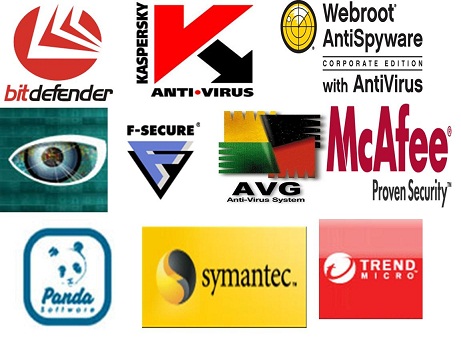
top+5+antiviruses

Listening to songs and watching movies is one of the most important thing we do in our PC.So we need a good media player which can play almost all formats of files.So Vlc Media Player comes 2nd in the list.
vlc+media+player
You need an all one one softwares which cleans registry errors and junk files from your PC and makes your PC smooth and fast.For this I would recommend Tuneup Utilities/Uniblue Power Suite/Ccleaner.

I suggest you to get those three softwares and run those 3 softwares when you start using your PC .I guarantee you that your PC will run like a dream using these softwares.
registry+cleaners
Nero is a best softwares if you want to burn any type of CD or DVD but nero is not free so I recommend Img Burner which is very much similar to Nero but you can get it for free.
image+burner

These are the two leading browsers and I recommend you to get these two browsers.

Mozilla Firefox is the best browser ever made for its multi functional use.Google Chrome is the fastest and safest browser. 

browsers
We cant imagine a business without MS Office.Right from student to a Business Man its a must software but its not for free so I recommend you to use Open Office which is very much similar to MS office but its for free.
open+office
If you want to read ebooks and pdf documents then its a must software for you.
adobe+reader

8.7 Zip:-

Open source Windows utility for manipulating archives. Formats 7z, ZIP, GZIP, BZIP2 and TAR are supported fully, other formats can be unpacked. It has the highest compression ratio ever.


7+zip

IDM is a must softwares for PC as it increases our overall download speed by 5 times.


internet+download+manager
Utorrent is a light weight and very efficient torrent to download files from utorrent.

utorrent

11.Adobe Photoshop/GIMP:-

Adobe Photoshop is a must software for editing photo but its not for free,I have an alternative for this GIMP which is free and very much similar to Adobe Photoshop.

adobe+photoshop

12.Revo Uninstaller:-

Revo Uninstaller is a freeware innovative uninstall utility much faster than Windows Add/Remove applet. With its advanced and fast algorithm, Revo Uninstaller scans before and after you uninstall an application.


revo+uninstaller

13.Adobe Flash Player:-

This is a must software if you want to watch flash videos on your computer.
adobe+flash+player

14.Malware Bytes:-

Malware Bytes is a tool that removes malicious and infected area of your PC and it can optimize your PC performance.

malware+bytes


15.Zone Alarm Firewall:-

Zone Alarm is a cutting edge firewall security option which blocks dangerous sites and downloads. Zone Alarm comes with a ‘Two way firewall’ which keeps track of all incoming and outgoing traffic protecting you from hackers and other intruders.

zone+alarm

16.Team Viewer:-

Team Viewer is the best software for remote desktop viewing .You can share your desktop from anywhere in this world with this software.

team+viewer

17.Notepad++

Notepad++ is a free source and best text editor for several programming languages under windows environment.

notepad++

18.Folder Lock:-

Folder locker allows you to store all you files with a protected password.

folder-lock


19.Sandboxie:-

This is a must software for virus testers .If you download any applicattion from internet just run it in Sandboxie to check whether its infected or not.
sandboxie


20.Keyscrambler:-

In this world of internet you cant guess when a keylogger gets installed on your PC and loose your confidential passwords.Keyscrambler software scrambles your keys and helps to stay safe even if keylogger gets installed.
key+scrambler


21.Winrar:-

Winrar is a must software for a PC as you can compress and store files and also most of the files which we download are compressed so winrar is must even to extract those files.

<<<CLICK HERE TO DOWNLOAD FULL VERSION>>>

Password: alltechbuzz
winrar


22.File Opener:-

File Opener is a software which can open different formats.This software can fulfill need of 10 softwares for opening files. 


  1. file+opener


23.VMWARE WORKSTATION:-

Vmware helps us in installing multiple Operating Systems over one Operating System. Puzzled??? Well, to simplify things, Vmware allows us to run multiple Operating Systems(called slaves) on our computer. Say you are having Windows 7 installed on your computer as the main Operating System. Vmware runs as an application on Windows 7 and allows us to install other Operating Systems like Windows XP, Linux and 20 other types of Operating Systems. So, you don’t need to boot your computer to change your Operating systems. One Vmware Workstation can accomodate 20 such Operating systems.

Vmware is particularly useful for testing purposes. Also, there are some softwares which do not upgrade themselves according to new updates. Vmware can be pretty useful for such softwares. If you want to have a free alternative to Vmware, try out VirtualBox.


vmware+workstation

24.DEEP FREEZE:

Deep Freeze is another virtualization software. It is mainly used to keeping computers intact and preventing systems from being infected. It functions similar to Sandboxie. Deep Freeze makes computer configurations indestructible and prevents against unwanted workstation changes—regardless of whether they are accidental or malicious. Deep Freeze is proven to reduce help desk support incidents and allows IT personnel to focus on more strategic IT needs.

deep+freeze


25.CYBERGHOST VPN:

Are you banned from any forum??? Try out this software. If you want to surf anonymously on web without displaying your real IP address, you use this VPN – CyberGhost VPN. There are many other proxy softwares on web. But, none of them gives total protection to your computer. Most of them are restricted to only browser activities.

cyberghost+vpn

It took 3 hours for me to collect these softwares and test these softwares, hope that you liked this article .
Read more

Friday, 19 October 2012

Surface - A Revolutionary Tablet PC by Microsoft to Beat iPad


Microsoft Surface Tablet
Surface is another kid in the tablets block currently introduced by Microsoft and will be released soon. developed on the platform of Windows 8 its going to be equipped with every single feature which normally comes in laptop or a bulky PC. So every single productive feature combined, compressed and bundled in a simple elegant and unique style. Its just a tablet and combined with a detachable keyboard you can use it as a laptop.

Features of Microsoft Surface Tablet :

With a Microsoft name joined with this tablet obviously you all are not going to get any inferior product specification else then some less techy features as you might get in iPad by Apple. But still a first step into the tablets market will surely give them some further futuristic knowledge for their upcoming tablets.
  1. Camera : If we talk about the main and the most important feature needed in any tablet or phone or kindle its obviously the camera which people use to share there memories or keep them right for their children's blah blah, well surface obviously comes with a front and back camera which you can use for the recording or video chatting purpose and according to some concept testing carried on this device the quality was also noted as a fine one.
  2. Display : Display is another main characteristic feature in any device which must be checked before purchasing it out and the best part is that this device is 10.6" in size and equipped with a HD technology. Now this will surely deliver some awesome video viewing and browsing experience.
  3. Ports & Slots : Now talking about the tablets you will obviously not get much ports than surface comes with, the most important one is the USB port + SD Card port and both of them are right here available on the Surface. So now attach a USB to Surface and start transferring files right on the go.
  4. Keypad : Working with a touch support you might get some easy working mode but still a need of a fully functional keypad is must, well Surface comes with a cool thin 3mm keypad with a trackpad which you use right attaching to it and it works like a charm.
  5. Casing : Casing is another main thing noted in a tablet as if something misshaping happened than you might have to loose some money from your pocket for its repairing charges. Well Surface comes with a VaporMag casing which is built with a combination of metal and magnesium particles, so its awesomely strong and will surely protect your device out.
  6. Kickstand : Now relaxing out sometime and watching some movies or YouTube video can be a huge problem as you have to hold it out and that can surely give you pain in your brain well but everything kept in mind Microsoft has added a kickstand right behind the tablet which you can open and keep it anywhere and watch movies on the go without any problem.
microsoft surface tablet


Read more

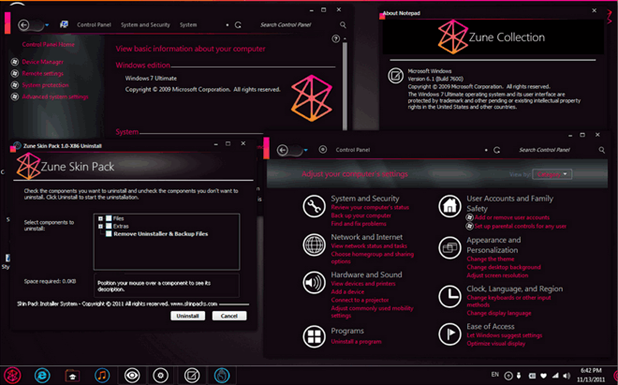
Transform your Windows 7 into "Zune" with this Skin Pack

Transform Windows 7 into “Zune” with Skin PackTransform Windows 7 into “Zune” with Skin Pack Another great skin pack for Windows 7 Zune Skin Pack created by skin king "HamedDanger" a DeviantART guy, well this skin pack comes with a nice contrast and colors, I loved the icons  and nice loading bars. The start menu is also replaced and look awesome, well overall it’s a good creation and works well but still there can be any issues you might face.
Remember I am not responsible for any problems created using this theme pack, I just got this and I am sharing this out if you like it use it at your own risk.
Read more

Wednesday, 17 October 2012

Remove One Operating System from Dual Boot Windows


Windows has always revolutionized itself bringing more and more possibilities for people to get their work down, earlier we used to work in Windows 98 and then Windows XP was born that simply changed everything. People are still in love with the Windows XP and after the release of its successor version called Windows Vista people usually want to use both the operating system to get entertained by both the ends. So usually they just program and install two operating system together and can use any of them one by one. This adds ability to use any version but side by side adds some heavy burden on system and kills its performance.
dual-booting-windows

Editing Boot.ini File for Removing Operating System

So now if you are in search of removing one operating system which was just added by any computer specialist than below steps will guide you through the whole process. The process is really simply and includes simple following instructions.
  1. Press Start Button and choose Run you can also open Run command by pressing Windows Key + R
  2. Now in Run dialog just type sysdm.cpl and press enter, now System Properties Dialog will open in front of you.
  3. Navigate to Advanced Tab and press Setting under Startup and Recovery option.
  4. Now under System Startup Area you will see Edit Button click on it, if you have only one operating system installed than you might not see any Edit Button.
  5. “[boot loader]
    timeout=30
    default=multi(0)disk(0)rdisk(0)partition(1)WINDOWS
    [operating systems]
    multi(0)disk(0)rdisk(0)partition(1)WINDOWS=”Windows XP Professional” /fastdetect
    multi(0)disk(0)rdisk(0)partition(2)WINNT=”Windows 2000 Professional” /fastdetect
  6. Now above text will not be same as it depends on the system you have installed. So it will be similar but some name and lines will be changed.
  7. Now suppose you wanna delete the Windows XP Professional from your system according to above example so you are just going to delete below line.
    multi(0)disk(0)rdisk(0)partition(1)WINDOWS=”Windows XP Professional” /fastdetect
  8. So you get it which ever system is installed just delete the line starting from multi and ending with fastdetect.
  9. Now you just need to remove the remaining files that the operating system folder from the drive in which its installed so just navigate to the drive and delete the operating system folder to free up some space.
  10. Now everything is done just restart your system and enjoy one simple operating system with faster loading and freed up space.
  11. Now when you will click on Edit Button a notepad file will open with text something like below, that’s the boot.ini file.
Read more

How to Install Windows XP Fast in approx. 5-12 Minutes


This is an older post and has been edited for some corrections and other replaced blurry graphics, well now who in this stage will install Windows XP else than Windows 7 as windows 7 comes up with all the major things you might get in XP but still if you are the one who love the older version and want to install Windows XP than this guide will teach you how you can install it fast in just 5-12minutes.
Now the process is simple but needs some guidance which you can get below, just follow it exactly and you will have your Windows XP installed without any delay.
  1. Now when ever you start out installing Windows XP you are greeted with a 256 color bit interface with some loading and other tweaking part.
  2. When you complete out that 256 color bit part you will be greeted with setting up graphical interface like below now at this time just press Shift + F10windows-xp-setup
  3. Now after your press Shift + F10 at this stage your will see command prompt popping up, now just type taskmgr to open up the task manager.
  4. task-managerNow in the task manager shift to Processes tab and your will see setup.exe right there like in the image on the right.
  5. Just right click on the setup.exe and select the priority to "Real Time"
  6. That’s it everything thing is done now just see how your Windows XP gets installed within 5-12 minutes approx.
If you find out any problem just comment below, so that I can check into the matter and fix it out as soon as possible. If you like this post do like and share with all your friends.
Read more

How to Add Background Image to your Windows Local Drives


drive-background-imageEarlier we posted out a simple tool called logon image changer for changing your login image to any desirable image you want, to day I found another interesting tool called "Drives Background Image" developed by Mubashar Islam for changing your background images in local drives, USB drives, floppy drives and other storage area
 
This simple claims to change background images for possibly any drive that can be seen in Windows, just select that drive and choose your image which you wanna assign as a background. You can also change icons for your drives and even change the text color. So all in one this tool can be useful at the time you are seriously into modifying your PC according to your preference. So if you are interested in this amazing tool than check out the below steps on how you can download this and use this on your PC.


  1. Download Drives Background Image tool from Softpedia Website. 
  2. Now just this tool it’s a simple .exe file so it will not install anything just run it and assign your wallpapers easily. 
  3. Now choose the drive from the list displayed and press Select Picture. 
  4. Now just assign it and have fun changing your icons and images easily.

Read more

Friday, 14 September 2012

Run Android apps on Windows

Most Android-based smartphone users would agree that they would prefer testing an app before downloading it to their phone.
Run Android apps on Windows
Most Android-based smartphone users would agree that they would prefer testing an app before downloading it to their phone. The reason behind this is usually to avoid unnecessary space hogging apps. Some users might also wish to play some of the cool mobile games available for the Android platform on their PC i.e. on a larger display. In this tutorial, we’ll show you how can your favorite Android apps on your Windows-based PC using a simple and free software called BlueStacks.
Installing
Installing


BlueStacks is an app player for Windows, which can play Android apps faster than it can run on a phone and that too, on a full-screen. The app includes 10 pre-loaded apps and one can add up to 26 more apps of their choice. Favorite apps can be pushed directly from the phone onto the PC using an Android app via internet route. Download and install the software for Windows from the URL ‘www.bluestacks.com’. The software is nothing, but a simple virtual Android operating system, which simulates an Android phone or UI. It uses the desktop PC’s resources such as the processor, the internet connection, mouse, keyboard and the audio card. The installed folder located on the PC contains the necessary files for its use, namely the kernel, data, system, boot and storage (the SD card). The BlueStacks Android (Gingerbread) virtual machine creates a hardware environment with a limited amount of storage (around 363 MB) for installing apps and 262 MB of SD card storage space.

   Once BlueStacks is installed, the application will be running the Android operating system in the background and you will see an icon in the system tray area and a widget will be running on your screen. A single click on the widget will reveal the Android system apps installed in it. Click on the apps and enjoy them on a large screen. Additional apps can be installed from the BlueStacks website by signing in using your Facebook account details. To get to this page, all you need to do is click on the BlueStacks widget, scroll to and click on the app icon/shortcut ‘Get more apps’. A website will open up where you can login using your Facebook details. Once logged in, simply click on the ‘Subscribe’ button for the available apps (in the Featured Apps section) and they shall automatically get installed on your system via the internet. The ‘Could Connect’ link on the same page will highlight a special 9-pin numerical code which needs to be entered on your Android phone running the BlueStacks Cloud Connect app (download it from the Android Market for free). Once done, you can push apps from your phone to your PC by simply selecting multiple apps and syncing it. That’s it! You can now enjoy all your favorite apps from your phone on your Windows desktop PC.
Interface
Interface


Cloud connect

Cloud connect


Note: There are a few (or many) apps that will not function on BlueStacks, due to reasons such as incompatible hardware (for example there is no wireless network available here and apps that need the wireless network will not function). Also a few apps cannot be installed under the free license of BlueStacks. The BlueStacks Pro version will be out soon and you can do a lot more on it. The free version has a maximum limit of 26 installable apps, while the pro version will have the possibility of installing unlimited apps.
Read more

Friday, 7 September 2012

How to Change your Voice Pitch on Skype for Windows

 
Skype is the best client for long distance communication and its even expanding all the possibilities for clown fish settingsconnecting even a low end person by giving some easier access on few smaller phones including big smartphones. Recently Facebook acquired Skype and people can do video chatting with all their friends on Facebook.
So we have earlier posted many stuff for Skype like Hidden Skype Emoticons and much more so today we are posting on how you can change your voice on Skype while chatting with other friend well it will be a real fun means becoming a alien or a predator and making fun of your friends.
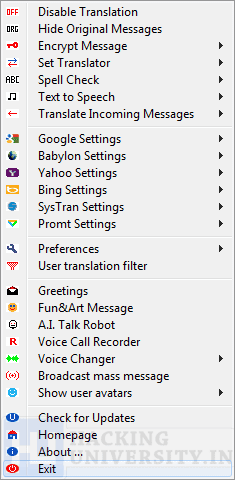
ClownFish Translator is a small plugin for Skype which works together united with it and make all these pitch changing scene live. I comes bundled with many options and tweaks which you can configure like in the image on the right. Aside of voice changing it has many more options which you can use and enjoy this amazing small plugin.

How to use ClownFish Translator for changing voice on Skype :

So now if you wanna have some fun with all your friends you can check below tutorial on how you can use it fro changing your voice pitch on Skype and give them a huge laugh.
1. Download ClownFish Translator Plugin


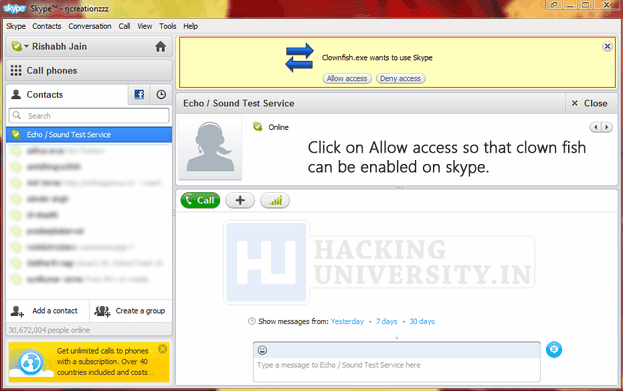
skype clownfish access2. After download is complete just install it and your Skype will popup asking permission to allow ClownFish use Skype, just click on Allow access like in the above image. (If Skype does not pops up automatically simply open it manually.
3. So now everything is up and running, now just click on the taskbar and than right click on the ClownFish icon and you will see settings in the first image, hover on the voice changer option and than choose the one you like.
4. Now start calling your friend and speak anything, now your normal voice is transformed and converted into the chosen one which your friend will hear. If you wanna test this first just call the echo test call and start recording your voice you will see that your pitch is changed.
Now you are done with this another pranking tutorial for Skype voice changing, hope you liked it and will share with all your friends, Kudos !…
Read more

Thursday, 30 August 2012

How to Hide and Lock Hard Disk Drives in "My Computer" window by GROUP POLICY

we can hide hard drives in my computer window by two ways... one way is command method and second method is group policy.. for this see below...
PROCEDURE:-
1.Type GPEDIT.MSC
2.Open the following sections: User Configuration->Administrative Templates->Windows Components->Windows Explorer.
3.Click Hide these specified drives in My Computer.
4.Click to select the Hide these specified drives in My Computer check box.
5.Click the appropriate option in the drop-down box.


NOTE:-
1.In this DIALOG BOX there is having only A,B,C,D DRIVES only.so we have change the C,D,E,F DRIVES as A,B,C,D...
2.In which method we hide the drives in that method only we have to unhide it.
3.close all my computer windows to take effectiveness.other wise u need to restart
4.when you are going to hide drives by command method... u just follow the screen shots... in that pictures, beware of caps and small letters. u have to type the letters as given in screen shorts...
5.keep patience when u r doing...
SCREEN SHOTS:-


Read more

how to protect a word document with password...


Today i am going to show how to put password to word document other individuals does not open...
PROCEDURE:-
1.open the document(which want to protect) and click save as option
2.AT the pop up window click 'Tools' then scroll down to General options and choose a password.for more assistance see below screen short


3.Choose a password for opening a document.


4.following result will be like this..


Read more

how to transform windows 7 to windows8...


windows 8 skin has released by third parties which gives a new look to your windows...it has amazing features which does not understand for the first time....


What all we get with “8 Skin Pack?
     The new boot screen.
     A brand new login screen.
New start screen.
New Windows 8 logo.
New start button.
Custom metro visual style.
New desktop backgrounds.
Task bar user picture tile.
Metro caption buttons (minimize, maximize and close buttons).
New window borders.
New shell style.
New installer.
New add mosaic feature.
New about Windows box.
Metro navigation buttons
Supported on both 32bit and 64bit OS and lots more.
NOTE:-Before applying this transformation pack
Create a system restore point to revert the changes if in case you surface problems with the skin pack.
CLICK HERE BELOW:-
Read more